FAQ and Life Hacks
Good to Know
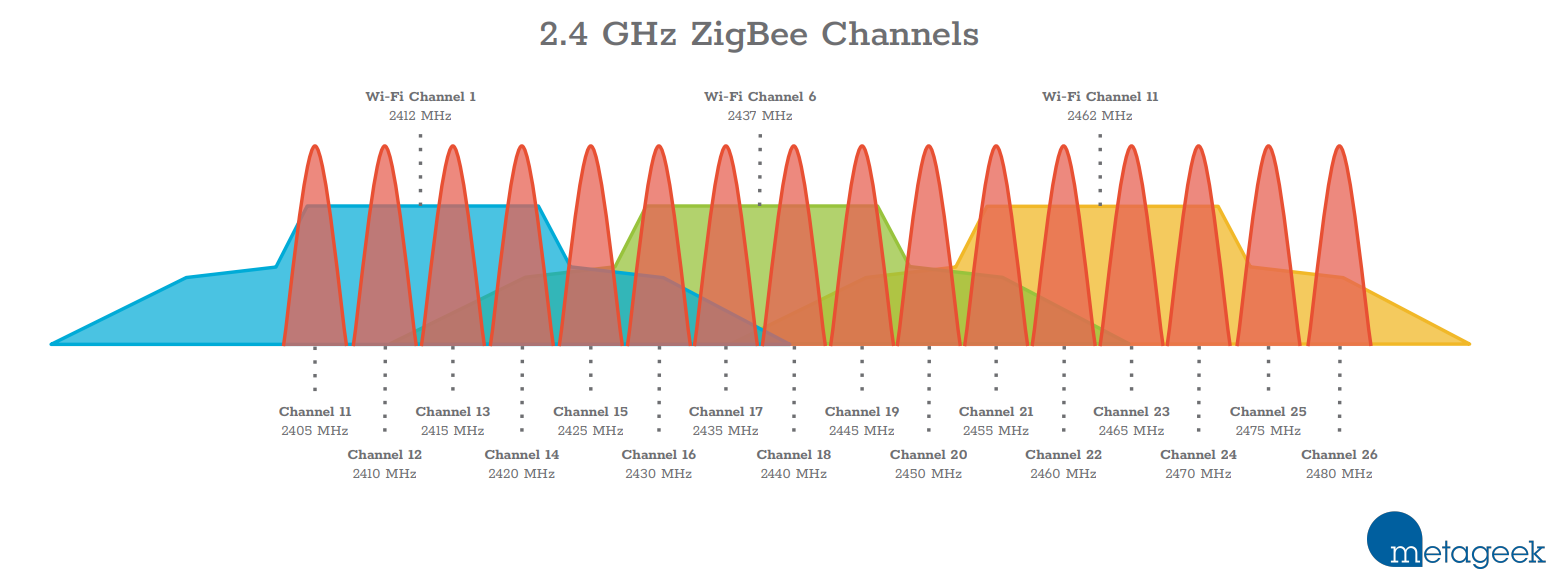
Best Channel for a Zigbee Network
It is recommended to use channel 15 for Zigbee and channels 1, 6, and 11 for your home Wi-Fi networks to avoid overlaps. Refer to this article by Metageek for more details.
mDNS Autodiscovery
Discover services on your local network using mDNS:
- Access your HMG adapter's web-interface via
hmg-01.local. -
Set up Zigbee2MQTT autodiscovery using the following configuration:
Type-A to Type-C Cable Support
For USB connections or flashing over USB, use Type-A to Type-C cables. Type-C to Type-C cables are not supported for flashing or as a Zigbee bridge.
Common Errors
Zigbee2MQTT: Error Network Commissioning Timeout
This error, often due to a duplicate panID or extendedPanID, is discussed extensively in these threads:
Integration with Home Automation Systems
Integrate your HMG with Home Assistant:
- Navigate to
Settings->Devices & Services. - Click
Add integrationand selectZigbee Home Automation. - In the serial port selection, choose
Enter manuallyand specify: - Serial device path:
socket://192.168.1.2:6638(replace with your device's IP) - Default port speed: 115200
- Select
Erase network settings and form a new networkand try adding a Zigbee device.
Adding Functionality
Run HMG as a Zigbee Router
Download and flash the router firmware from here. Power the device on in pairing mode and add it to your Zigbee network.
ESPHome Firmware
Run ESPHome firmware on your HMG for enhanced functionality: