Configuration
The HMG adapter can be configured either via a physical button or through the web interface.
Configuring via Web Interface
To configure the device using the web interface, connect it to your LAN network and enter the device's IP address in your browser on a laptop or phone.
Main parameters of the web interface:
-
"Status" - Displays the current status of the device; no settings are available.
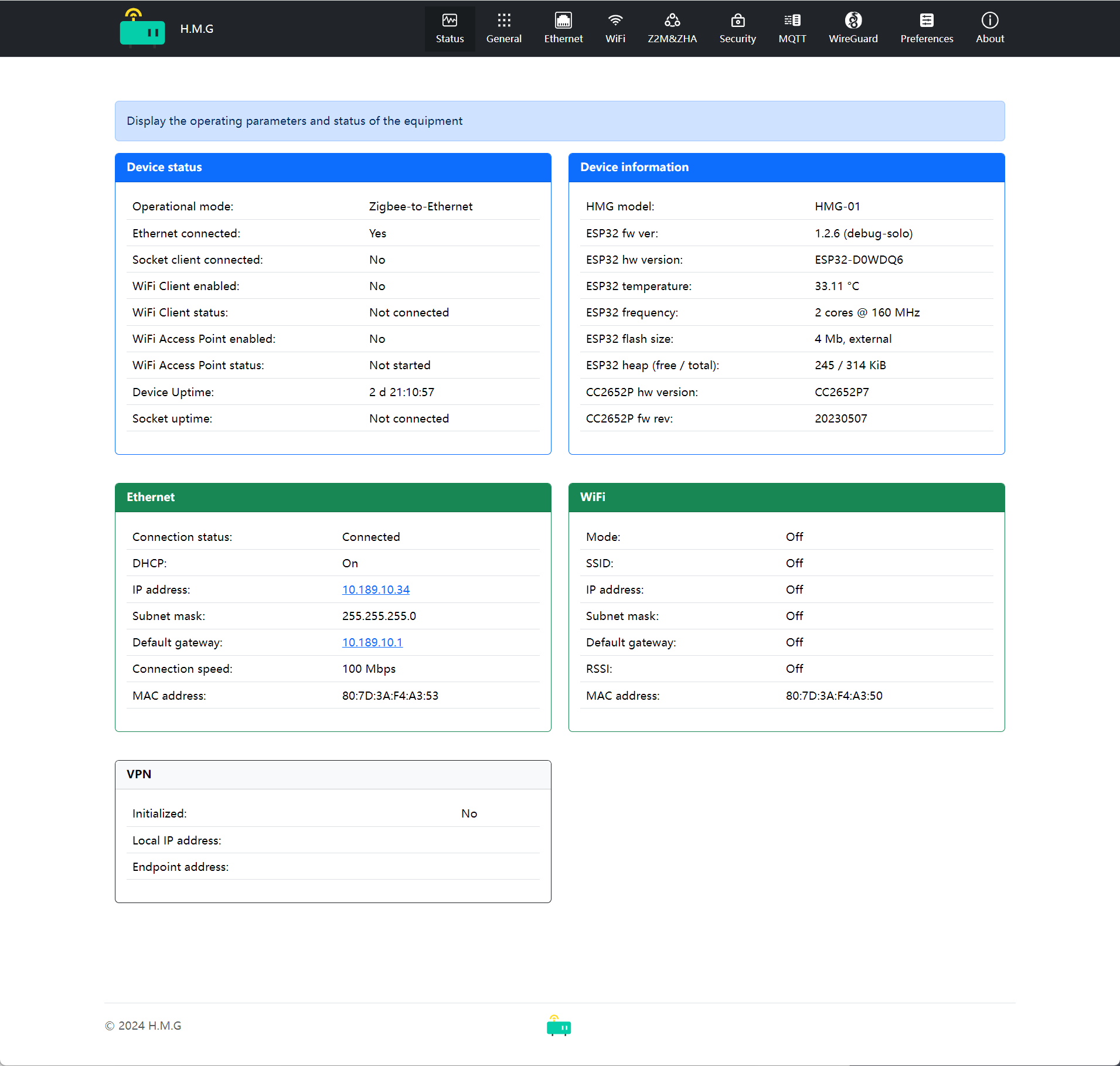
-
"General" - Allows setting the device's operation mode, LED operation mode, and disabling the LED.
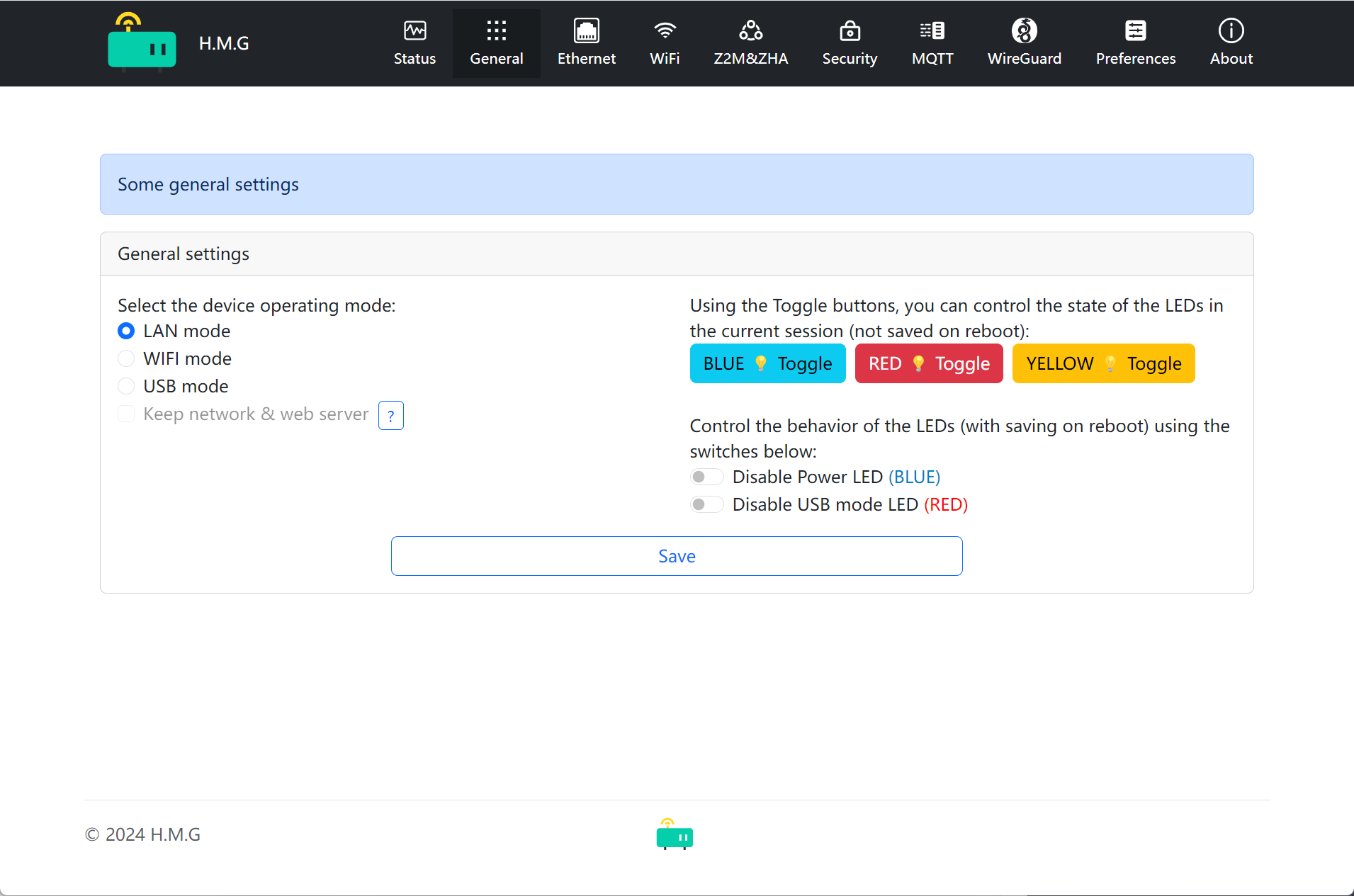
-
"Ethernet" - Configures Ethernet settings (DHCP, IP address, etc.).
-
"WiFi" - Sets up access via WiFi.
-
"Z2M & ZHA" - Configures access via Serial interface, and includes a configuration generator.
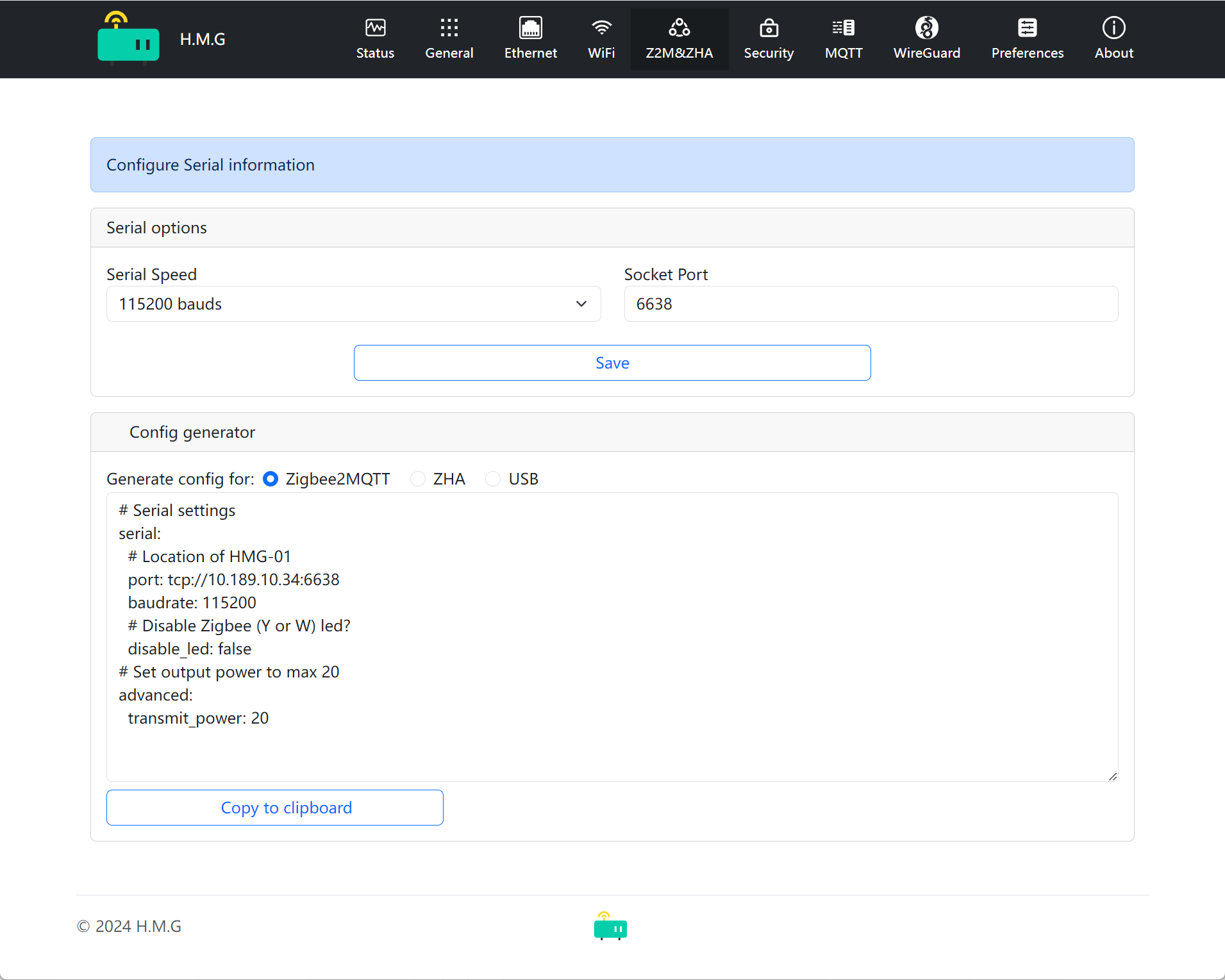
-
"Security" - Sets security parameters, such as login credentials, disabling the web interface, and IP whitelist.
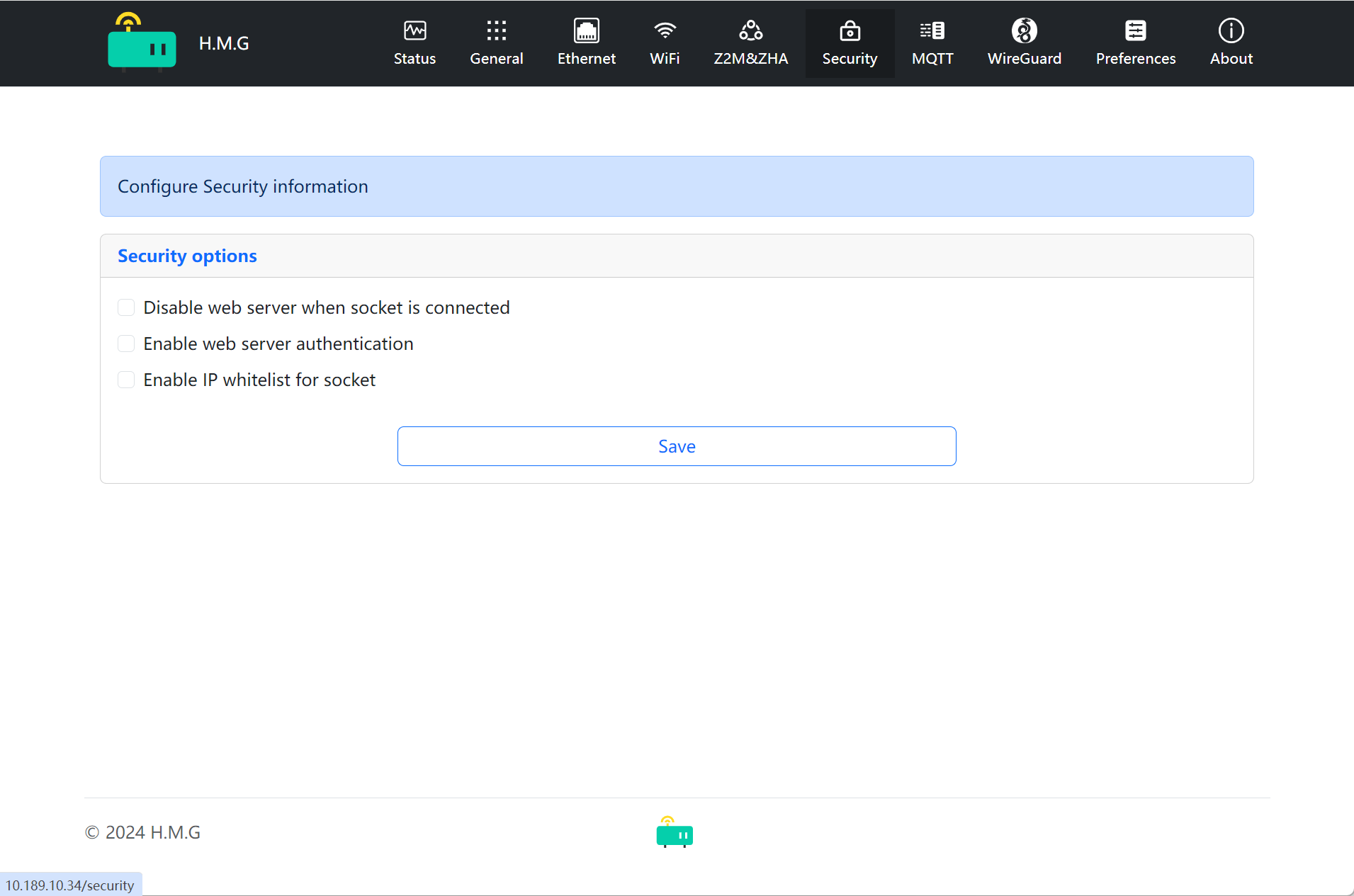
-
"Preferences" - Provides general system features such as over-the-air updates, rebooting ESP32 and CC2652P, and setting the hostname.
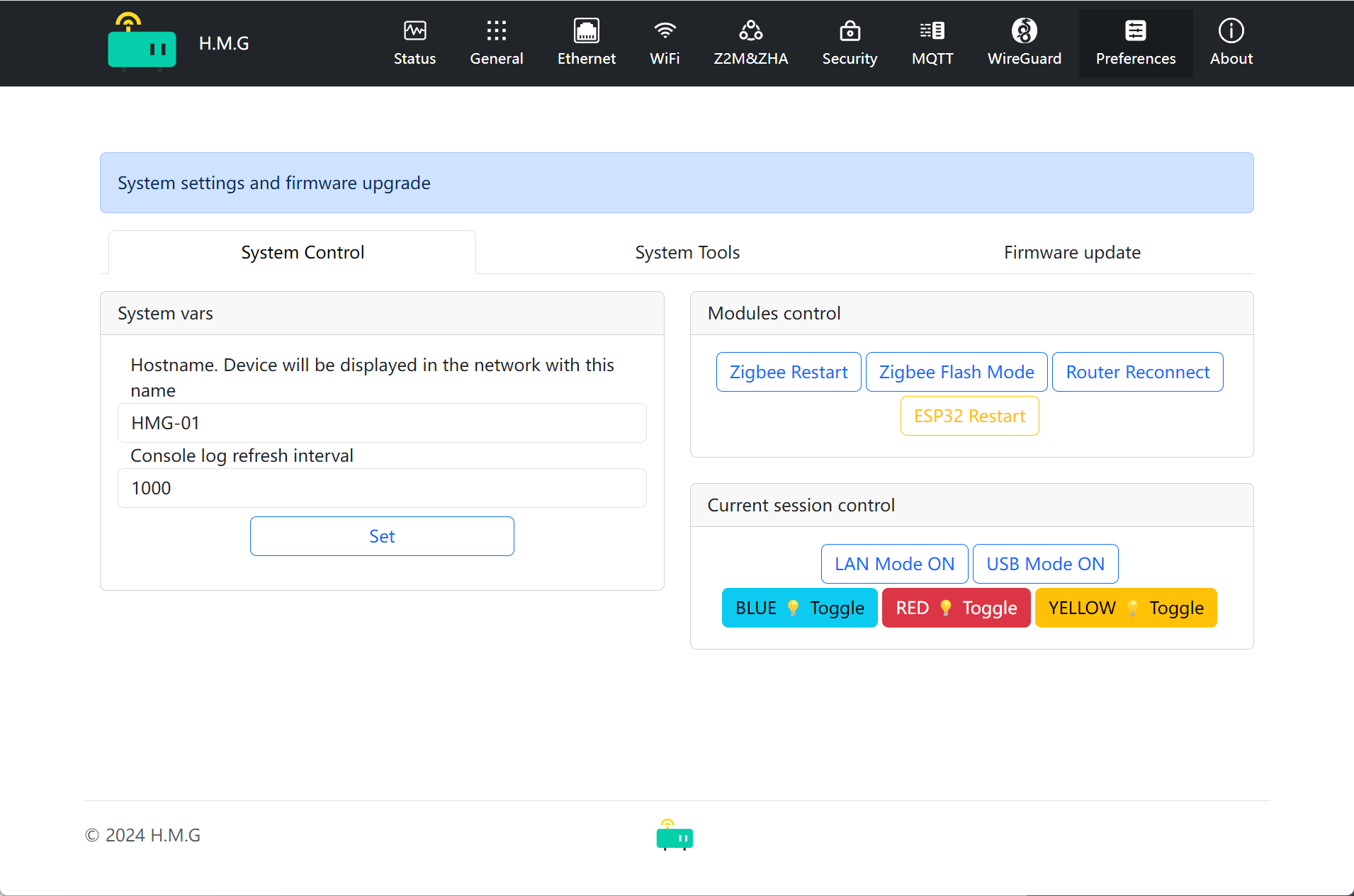
- "About" - Offers options to open a ticket, access the manual, download the latest firmware, and open an issue on Github.
Configuring via Button
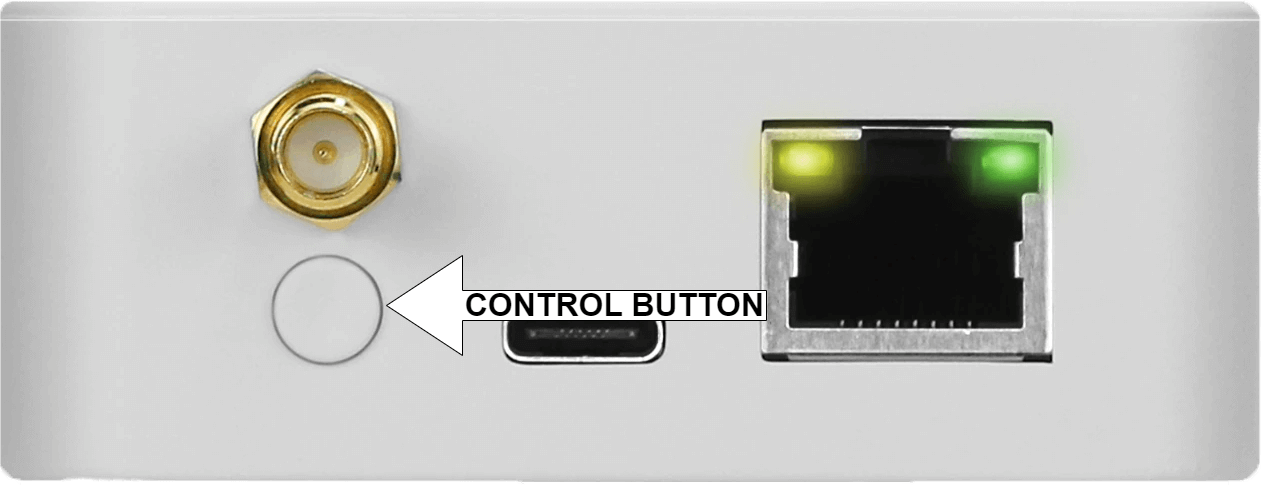
Using the physical button, you can perform the following settings:
- Change the device's operating mode from Zigbee-to-Ethernet to Zigbee-to-USB and vice versa by short pressing the button.
- Control the behavior of the LEDs. A long press turns off the LEDs. Another long press switches the LEDs back to the default operating mode.
Reset to Factory Defaults
Follow these steps to reset to factory defaults:
- Turn off the HMG.
- Hold the button pressed during power up for 6-10 seconds.
- Your device will reset to factory defaults.